Grab just what matters.
Press PrintScreen and select a region. It’s on your clipboard, ready to paste. Click a window or press Space for a whole monitor.
PrtSccapture & copy
 prnt8
prnt8
One key to grab your screen. A few more to make your point.
A small screenshot app that stays out of your way.
prnt8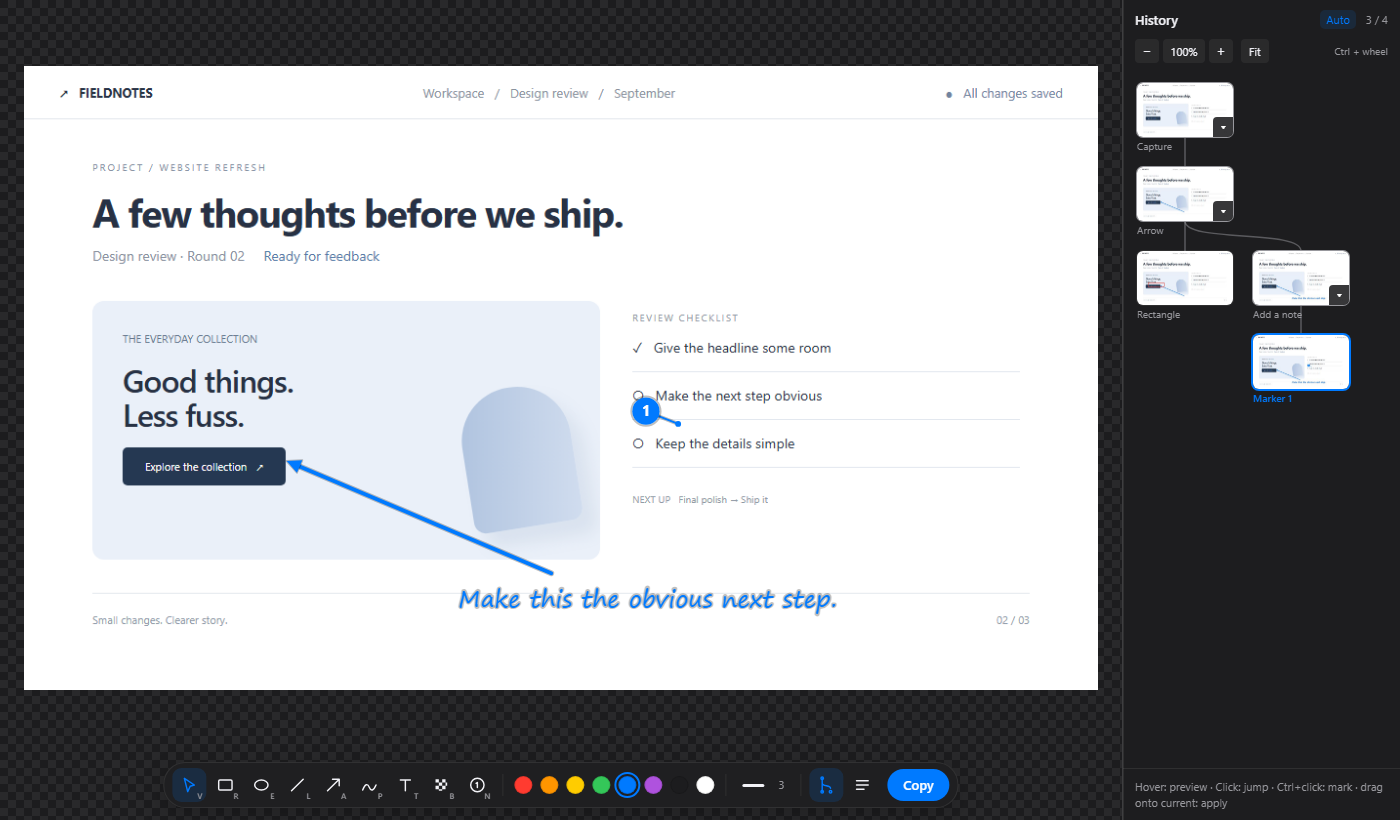
SCREEN → CLIPBOARD → DONE
Press PrintScreen and select a region. It’s on your clipboard, ready to paste. Click a window or press Space for a whole monitor.
Need a little context? Open the editor. Add an arrow, a note, or numbered steps. Redact the parts you want to keep to yourself.
Press Enter to copy your finished image and close the editor. Paste it into the conversation. Or save a PNG when it’s a keeper.
ROOM TO CHANGE YOUR MIND
Most undo buttons take you back. prnt8 lets you take a different path—and keep the first one. Branch, compare, and bring the best parts together.
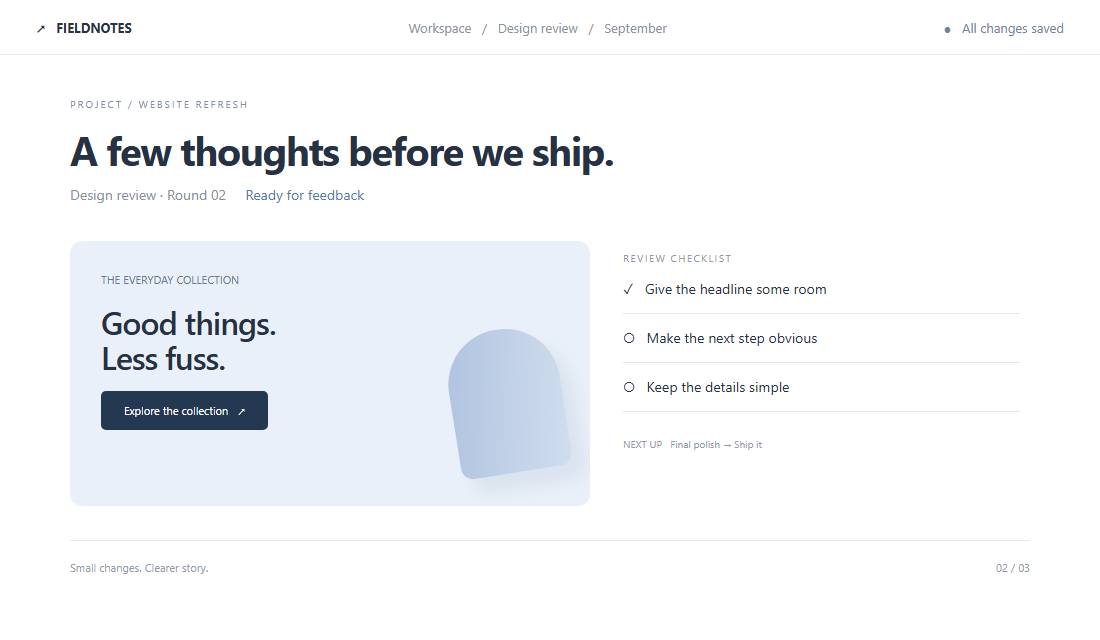
Apply a step from the first branch onto the second. The dashed arrow shows where it came from.
An interactive illustration of the workflow. Press H in the app to explore your actual history.
Undo and make a new edit to fork a branch. Click any thumbnail to return to that version.
Mark individual steps or whole groups and apply them here. Hover first to preview the result.
Collapse branches, choose their final state, and group consecutive edits. Zoom and fit the map as it grows.
EVERY ANNOTATION HAS A PLACE
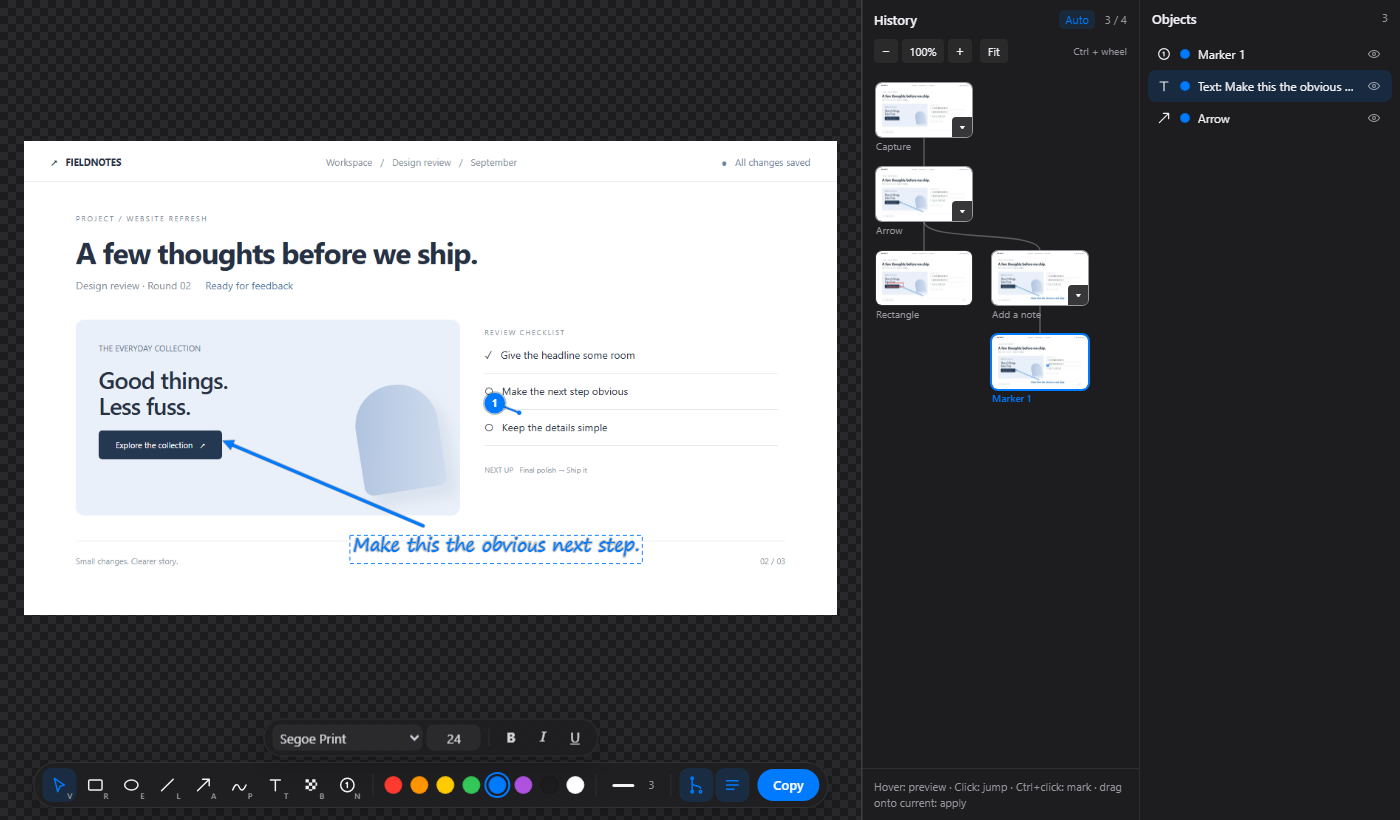
That arrow. This note. The rectangle behind both. The Objects panel gives every annotation a name, a place in the stack, and a way to get out of the way.
SMALL APP. THOUGHTFUL DETAILS.
Single-key tools. Eight color shortcuts. Undo, redo, copy, done. Press F1 in the editor for the full cheat sheet.
No account. No upload service. Captures and edit history stay on your PC until you copy, save, or share them yourself.
Reopen a capture from the tray. By default, prnt8 keeps up to 200 captures for 7 days. Adjust retention in Settings.
The Redact tool replaces a region with a random mosaic. The covered pixels don’t appear in your exported image.
Download and run the installer. It installs for your Windows user without administrator access. Launch prnt8 from the Start menu, then look for its icon in the system tray. Press PrintScreen to capture, or Shift+PrintScreen to capture and annotate. Start at login is enabled on first launch; you can turn it off in Settings.
prnt8 turns off Windows’ PrintScreen-to-Snipping-Tool setting at startup. Quit any other screenshot app using the same shortcut, then open prnt8 Settings and save to register the hotkeys again. You can also choose different hotkeys there.
The app and installer are signed as Jared Short through Microsoft Azure Artifact Signing. The signature lets Windows verify the publisher and that the file hasn’t changed. A new release can still show a SmartScreen reputation warning. You can inspect the publisher under the file’s Properties → Digital Signatures.
Recent captures and their editable history live in %LOCALAPPDATA%\prnt8\captures. The original capture remains there until retention cleanup removes it, even if you redact part of an exported image. Use Save as PNG to keep a finished image permanently.
This release is for Windows 11 on x64 PCs. It supports multiple monitors and works alongside tiling window managers. The installer uses Microsoft Edge WebView2 and can download that runtime if it’s missing.
prnt8 checks for updates after startup and every six hours. You can also check from the tray or Settings, and turn off automatic checks. When a version is available, choose Install and restart. prnt8 verifies the signed update before installing it. Close your annotation editors first; your saved captures and settings are kept.
READY WHEN YOU ARE